

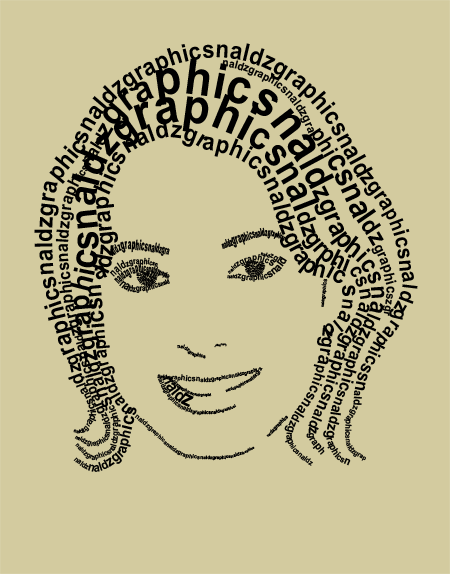
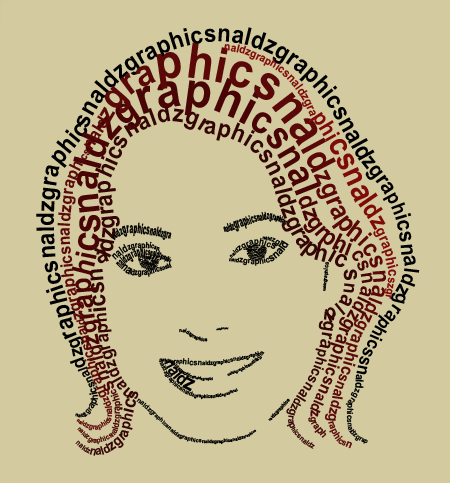
As I was thinking of making more advance tutorials, maybe its time to make a quick simple tutorials where beginners can easily figure how it was done. Here is a simple tutorial for beginners. In this tutorial you’ll gonna learn how to create a Simple Text Portrait in Photoshop. You will learn how to make a text follow into a path with the use of Pen Tool (P) in more artistic way. Here’s a quick look on the final result
First we need to get a Stock photo to start. This girl is good for our tutorial. You can use the image below. After you download it. Put it in Photoshop and Name it to “GUIDE”

Once you download, Remove the background using Polygonal Lasso Tool (L).

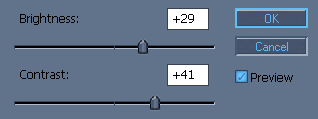
Lets adjust the image Brightness and Contrast. Copy the settings below
Now lets posterize it a bit. Go to Image>Adjustments>Posterize. Then set the Level to 5. One its done set the image Opacity to 40 so we can easily see the path later on once we use Pen Tool (P).

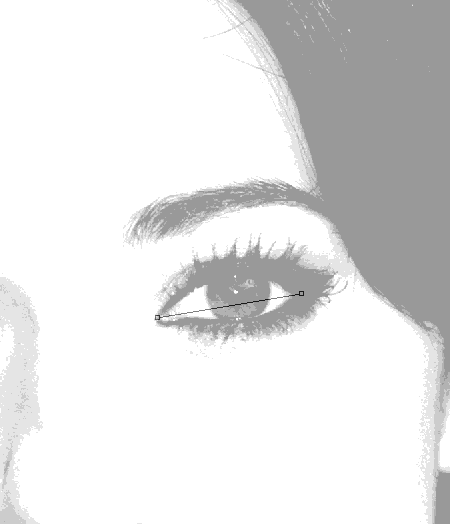
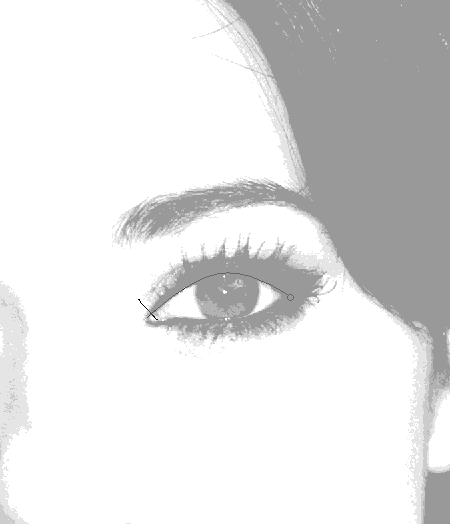
Choose Pen Tool (P). Start creating a path from left to right. See image below.
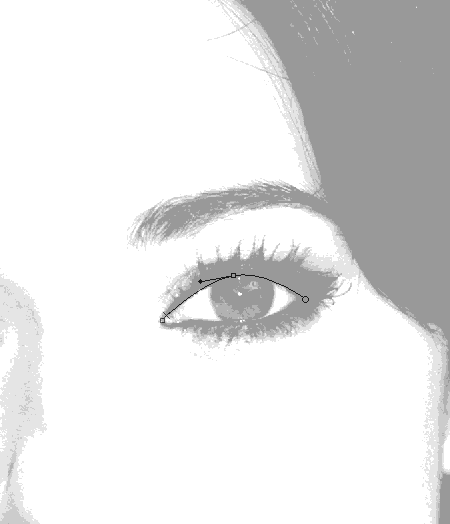
Now Lets add an anchor point on the center of the path. Right Click on the Pen Tool (P) in the toolbar then choose Add Anchor Point Tool. Add an anchor point on the center then hold Left Click on your Mouse then drag it Upward.
This time choose Horizontal Type Tool (T) then click on the left side of the path. Its the first point when we start creating our path. After you click the first point of our path It must look like this
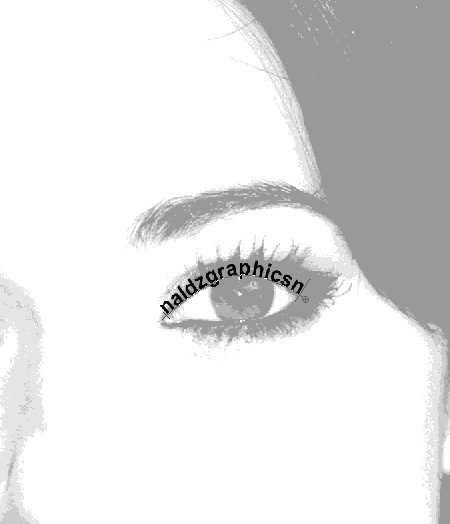
Now Start typing a text. I use naldzgraphics on this sample repeatedly:).
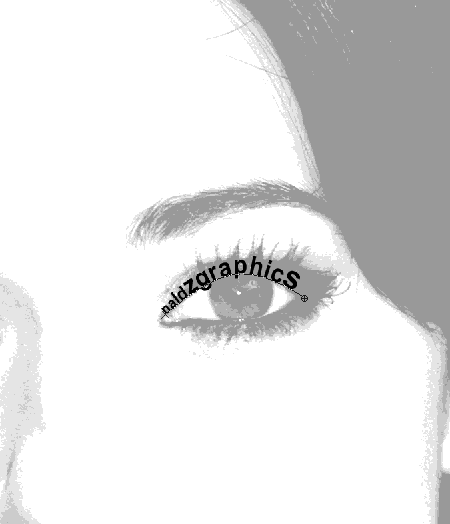
Lets adjust the size of the fonts so it will occupied the darker part of our image since we are using the darker part of the image as our guide to create our portrait.
To work on the eye, Choose Ellipse Tool (U) and start creating a circle inside the eye. Once your done adjust the circle using Direct Selection Tool (A). Now we have just made a path on the eye.
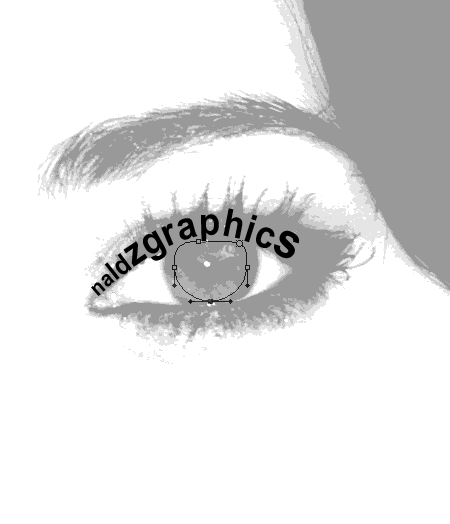
Choose Horizontal Type Tool (T) again. Click on the upper right of the path and start typing a text. It will look like this.
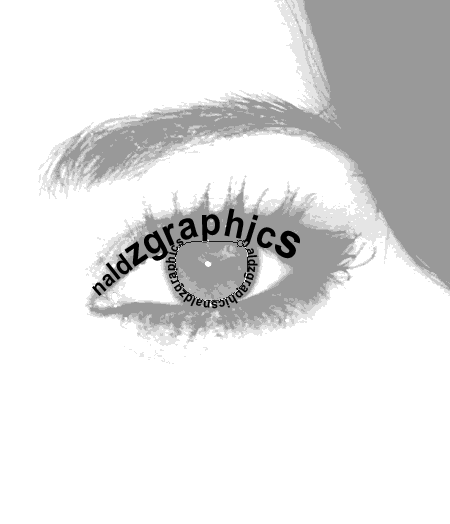
Now you learn how to create a path using Pen Tool repeat the same process on the nose,mouth and hair. Again make sure to use the darker part on the image as the guide on making the path:) Once your finish, close the “GUIDE” Layer. On the Background layer use #d3cb9f color. Use Paint Bucket Tool (G) to apply the color. And we’re finish:) Again Congrats!!!
Also Adding color gives better effect.You can play what ever color you want on your portrait. Here I just use a simple color using only more on red.
I hope this tutorial help you.
Also if you like you can bookmark this and share it with the others:)thanks for the visit and for your support.





very good tutorial.thank you for the photoshop tutorial.
Hey, naldz! This one is great – yet simple 🙂 Thanks for idea, just never thought about using this tool to do something like this! 🙂 great 🙂
This came out great, keep up the good work!
Really good job, keep up the great work!
– John
good job…and good finish ..i have add it to my collection
This is sweet! Thanks, man.
Awesome tutorial. Will come in handy 🙂
seems it’s very good prog.. but who can say hoiw i can dowload it :(( waiting answer,if your cangive me link ..
Cool
Wow
thanks
I want to strip wow
simple and useful, thank you
Gut!
This is great sites, full of good info surely bookmak this
Very helpful post. I was looking for a tutorial for this. It’s so simple, but you can do some amazing things with it.
thank bror
wow….fantastic.
Cool text portrait. I’ll have to try this one out.
it’s a damn cool .. let me post your article to my blog.. i like your tuts..
thank’s..
anjriiiit !!
hahaha…2 thumbs up for you
wow thts neat i cant wait to try it!!
Cool and simple!
this is fab but how do I make the text go from small to large so smoothly?
cool tutorial man dam good
plz send me more crative photoshop tutorials links
and plz send me the free link of all photoshop brushes.(i will most required destruction brushes)
so plz anyone send a link to my emal
“shiv181987@gamil.com”
thanks
thanks! a LOT LOT LOT LOT
LOT LOT LOT LOT
Thanks for the tutorial!
One question though: shouldn’t this type of work be done in a vectorial program such as Corel Draw?
I wanted to make a poster out of this but i’m afraid that working in photoshop will make my image pixelized..
lovey tut, keep up the good work high
woah! awesome tutorial
That is great love it!!
Can this be done in paint.net??
I wanted to make a poster out of this but i’m afraid that working in photoshop will make my image pixelized..